



Add Custom Input Fields to Your Product Configurator
Collect names, notes, preferences, and paid personalization details directly inside your configurator - fully native to WordPress + WooCommerce.

No external SaaS
Runs on your server
WooCommerce-native



























TL;DR: What It Does?
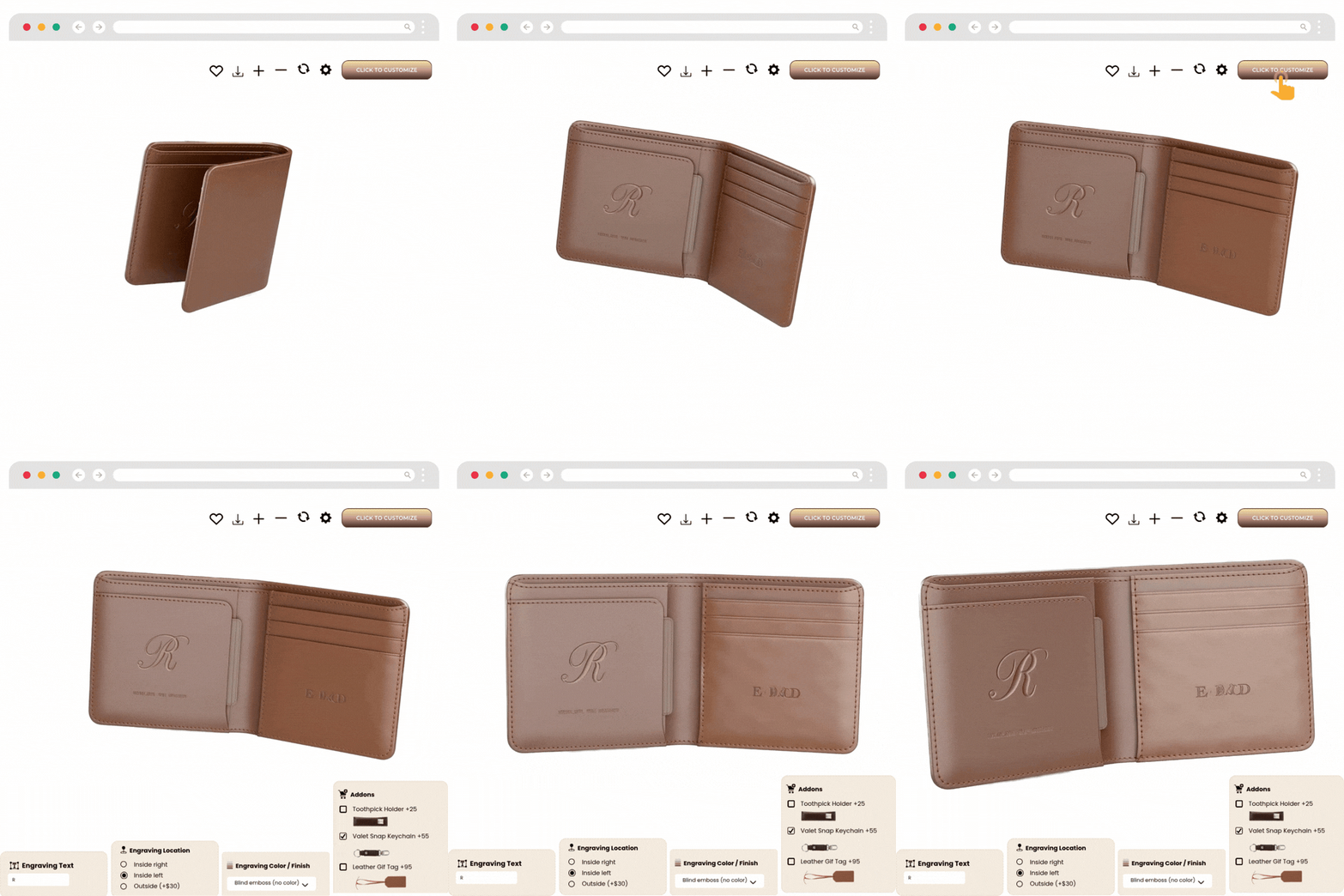
Add text inputs, text areas, dropdowns/select, radio, checkbox (and more where needed) for any order detail.
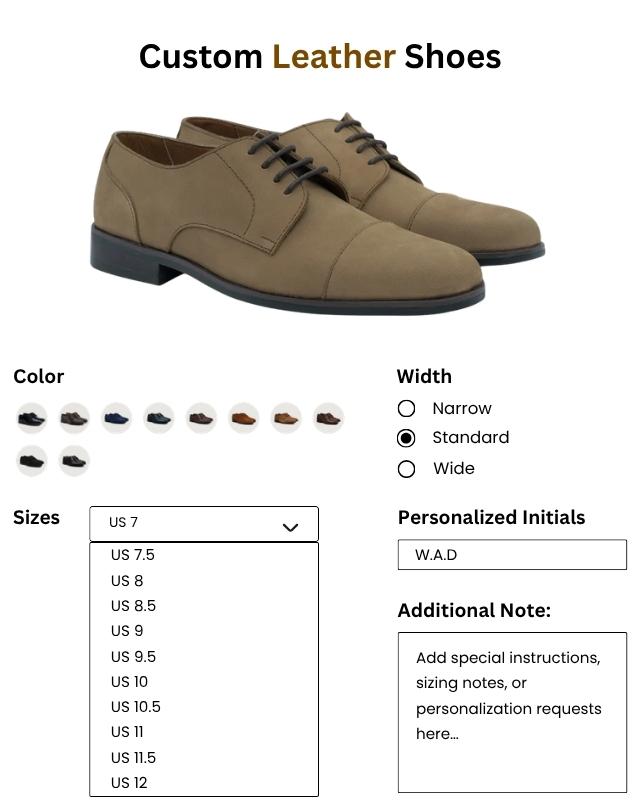
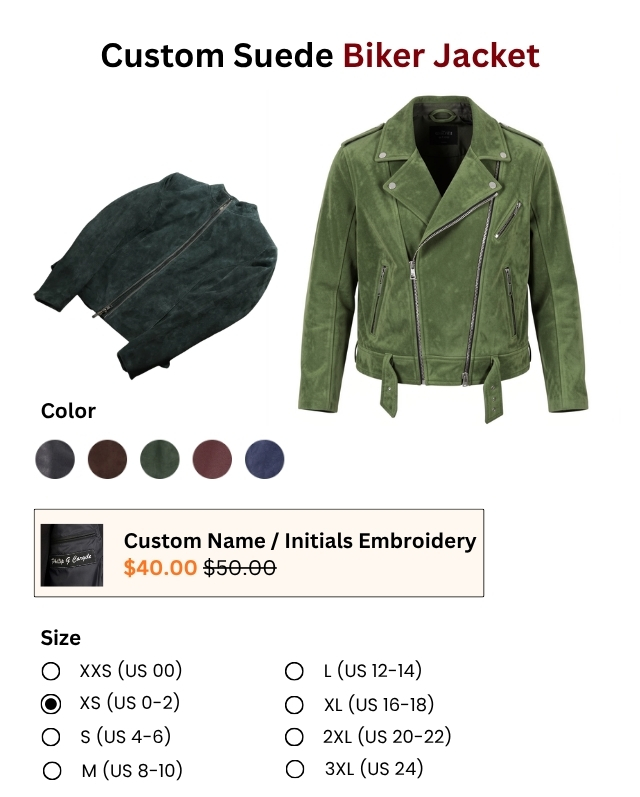
Charge extra when a shopper selects/fills a field (perfect for engraving, rush, gift wrap, and so on).
Place fields inside the configurator flow so the input feels like part of the configuration (not an afterthought).
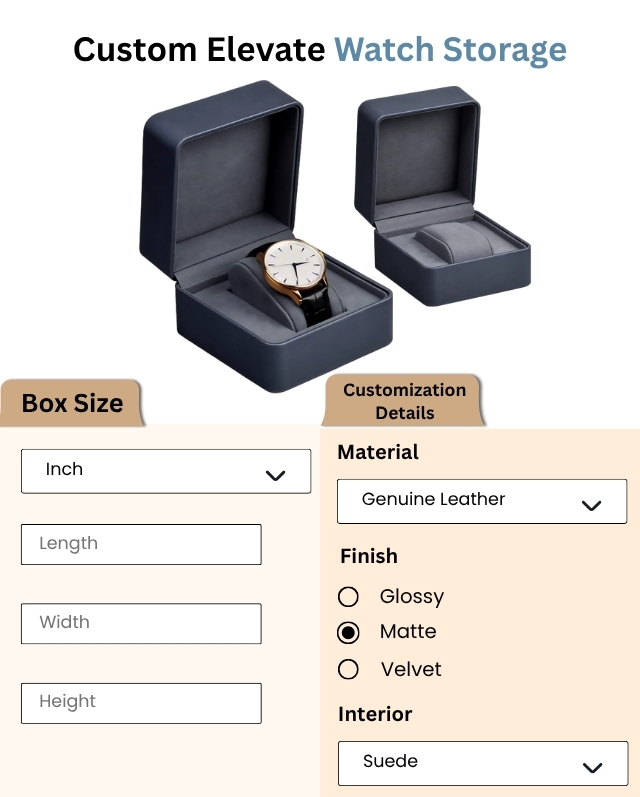
Capture engraving text, design ideas, special requests, and other “must-have” details upfront.
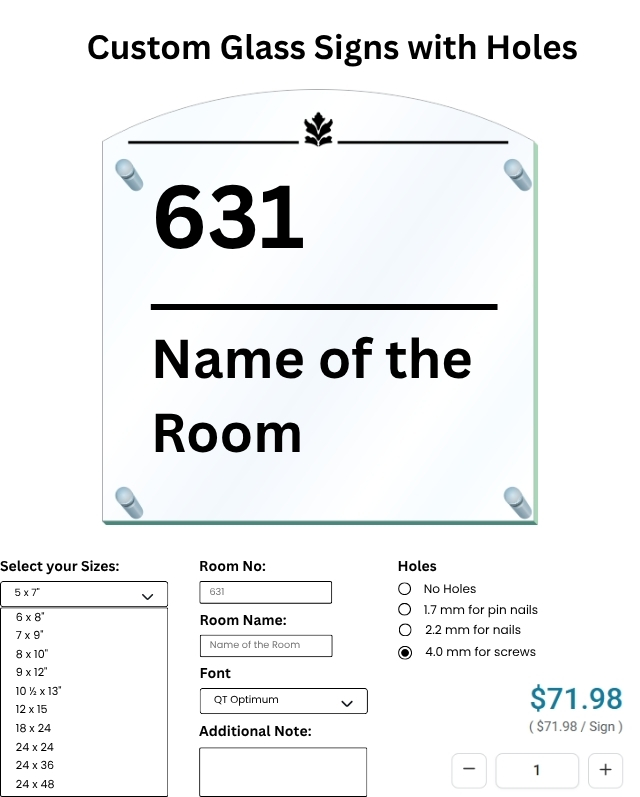
Get all the required info with the order to reduce delays and manual follow-ups.
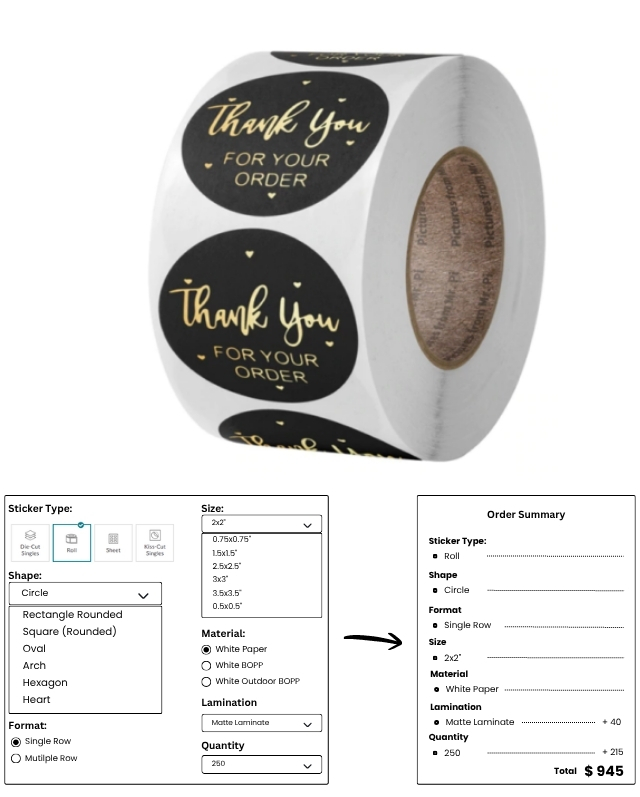
Works within WP Configurator Pro + WooCommerce flow (cart/checkout order process stays consistent).
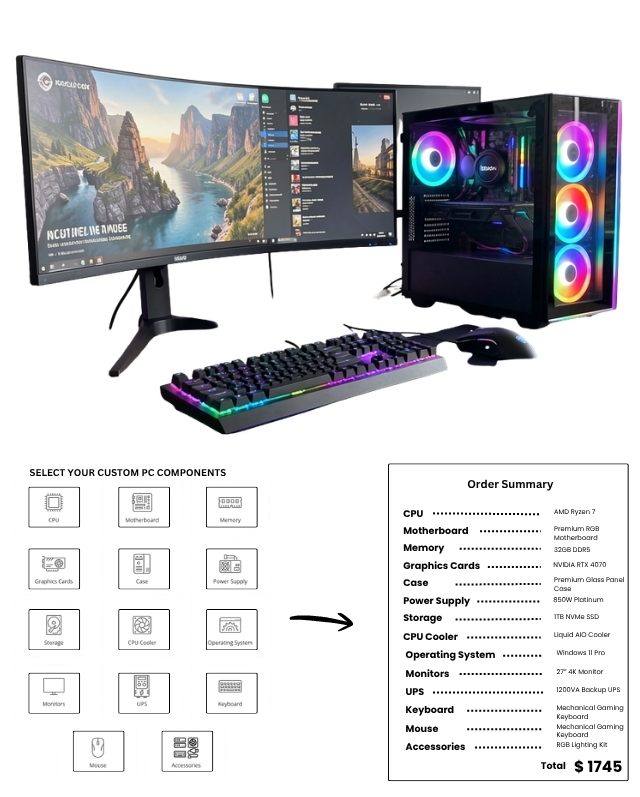
The result: Fewer emails, cleaner orders, faster fulfillment, and smoother buying decisions.
Stop Chasing Customers for Missing Details
Turn your configurator into a clean, conversion-friendly data capture flow. With Custom Input, shoppers provide the personalization details you need before checkout - so orders move faster, errors drop, and fulfillment stays smooth in WooCommerce.
Real-World Scenarios
Replace back-and-forth messages with a configurator step that collects the details you need instantly.

Printing & Merch
Collect print instructions, placement notes, and production references right in the flow.

Gadget & Gifting
Capture gift message, engraving text, and special packaging requests at checkout time.

Fashion & Luxury
Gather monogram initials, sizing notes, and personalization details without manual follow-up.

Automobile & Mobility
Ask for fitment notes, plate text, or install preferences tied to a selected option.

Furniture & Home
Capture measurement notes, delivery instructions, and finish preferences as part of the configuration.

Sports & Fitness
Get jersey name/number, team notes, or extra accessory requests upfront.

Food & Beverage
Collect message card text, delivery preferences, or event instructions when applicable.
Printing & Merch
Collect print instructions, placement notes, and production references right in the flow.
Gadget & Gifting
Capture gift message, engraving text, and special packaging requests at checkout time.
Fashion & Luxury
Gather monogram initials, sizing notes, and personalization details without manual follow-up.
Automobile & Mobility
Ask for fitment notes, plate text, or install preferences tied to a selected option.
Furniture & Home
Capture measurement notes, delivery instructions, and finish preferences as part of the configuration.
Sports & Fitness
Get jersey name/number, team notes, or extra accessory requests upfront.
Food & Beverage
Collect message card text, delivery preferences, or event instructions when applicable.
Key Capabilities

Field Groups
Create reusable sets of fields (e.g., “Helmet Extras,” “Engraving Details”).

Multiple Field Types
Text, Textarea, Select, Radio, Checkbox.

Admin-Friendly Setup
ID, label, default, placeholder controls for clean UX.

Paid Personalization
Add an extra price if a field is filled/selected.

Step/Layer Placement
Attach a field group to a chosen layer/step in the configurator editor.

Operational Clarity
Reduce missing-info tickets and fulfillment mistakes by collecting details at purchase time.

Runs on Your Store
No external services required; stays inside WP + WooCommerce stack.

Works with Existing Configurators
Add it only where you need it; keep other products unchanged.
Field Groups
Create reusable sets of fields (e.g., “Helmet Extras,” “Engraving Details”).
Multiple Field Types
Text, Textarea, Select, Radio, Checkbox.
Admin-Friendly Setup
ID, label, default, placeholder controls for clean UX.
Paid Personalization
Add an extra price if a field is filled/selected.
Step/Layer Placement
Attach a field group to a chosen layer/step in the configurator editor.
Operational Clarity
Reduce missing-info tickets and fulfillment mistakes by collecting details at purchase time.
Runs on Your Store
No external services required; stays inside WP + WooCommerce stack.
Works with Existing Configurators
Add it only where you need it; keep other products unchanged.
Setting Up: From Zero to Live
Works with existing products/configurators - enable it only where you need it
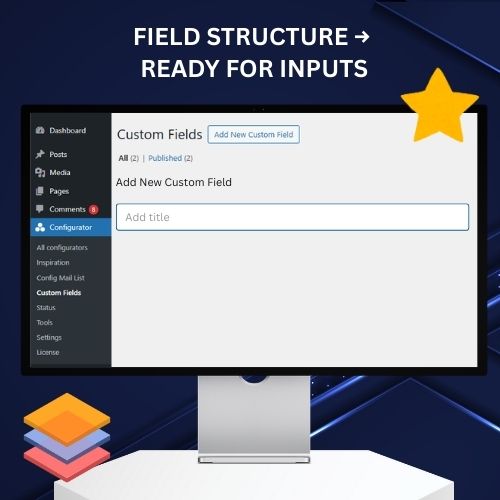
Create a Custom Fields Group
Go to Configurator → Custom Fields, add a group title.
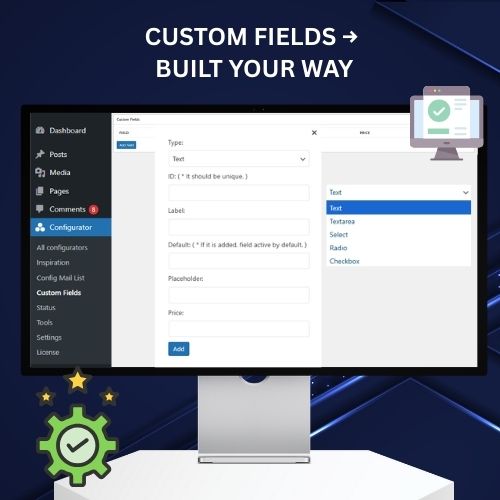
Add Fields
Choose type, set ID/label/default/placeholder, and (optionally) set extra price.
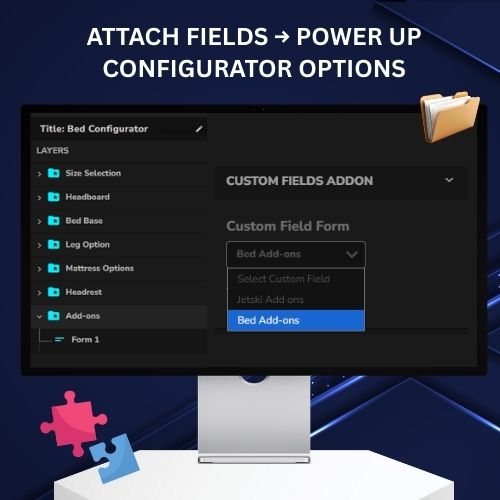
Assign to Configurator
Open the configurator, create/select the layer/step, pick the Custom Fields group.
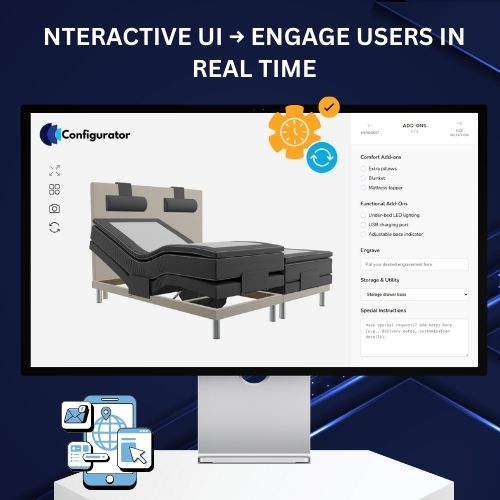
Test End-to-End
Confirm the shopper flow, selections, and that paid extras behave as expected.
Create a Custom Fields Group
Go to Configurator → Custom Fields, add a group title.
Add Fields
Choose type, set ID/label/default/placeholder, and (optionally) set extra price.
Assign to Configurator
Open the configurator, create/select the layer/step, pick the Custom Fields group.
Test End-to-End
(Confirm the shopper flow, selections, and that paid extras behave as expected.
What Shoppers See
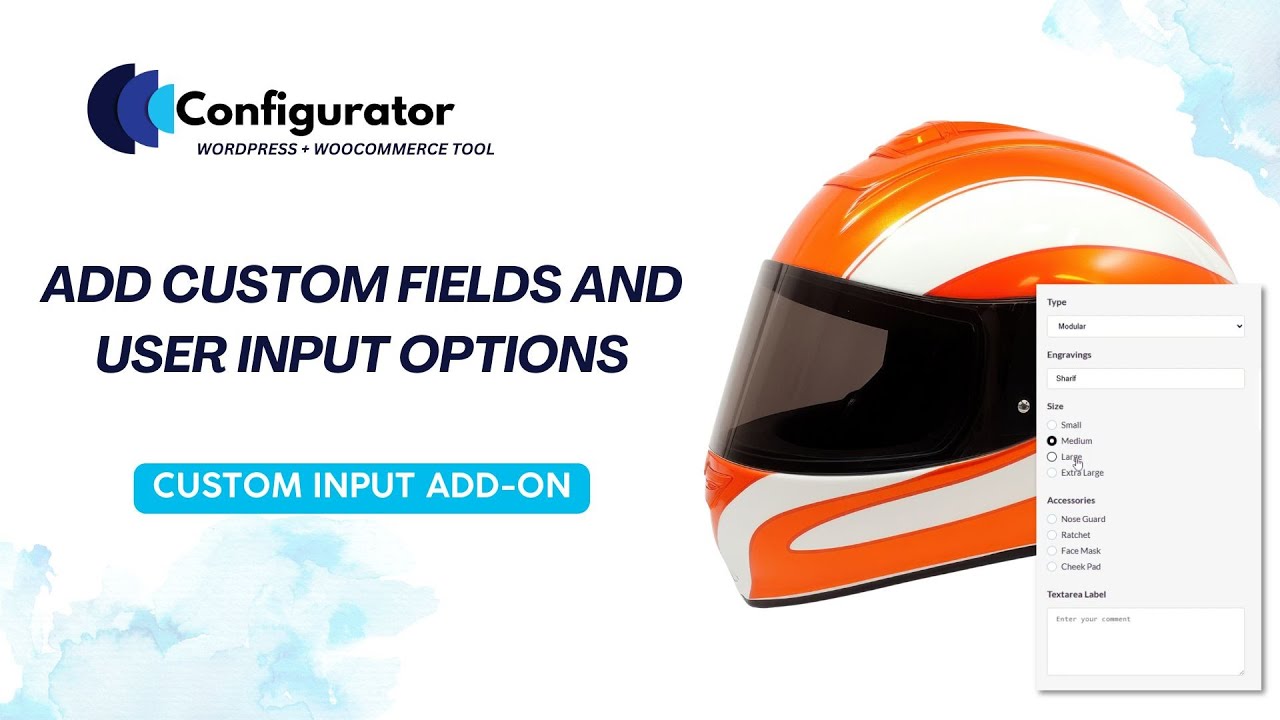
-
Choose a personalization option
Relevant input fields appear in the configurator step.
-
Type engraving/add a note
Details are captured with the order (no extra emails).
-
Select a paid extra (radio/checkbox)
The add-on price applies when selected.
-
Proceed to cart/checkout
WooCommerce purchase flow stays standard and clean.
Field Design Best Practices

Keep It Minimal
Ask only what’s truly required.

Clear Field Hints
Use simple labels and helpful placeholders.

Group by Purpose
Organize fields by intent (Engraving/Delivery/Notes).

Show Upgrade Costs
Display “+ $X” clearly with options.

Smart Defaults
Pre-fill common values when helpful.

Use Conditional Fields
Show fields only when relevant options are selected.
Keep It Minimal
Ask only what’s truly required.
Clear Field Hints
Use simple labels and helpful placeholders.
Group by Purpose
Organize fields by intent (Engraving/Delivery/Notes).
Show Upgrade Costs
Display “+ $X” clearly with options.
Smart Defaults
Pre-fill common values when helpful.
Use Conditional Fields
Show fields only when relevant options are selected.
Compatibility & Best Pairings
WP Configurator Pro is the foundation. Add-ons unlock specific workflows (rules, pricing, personalization, stock control).
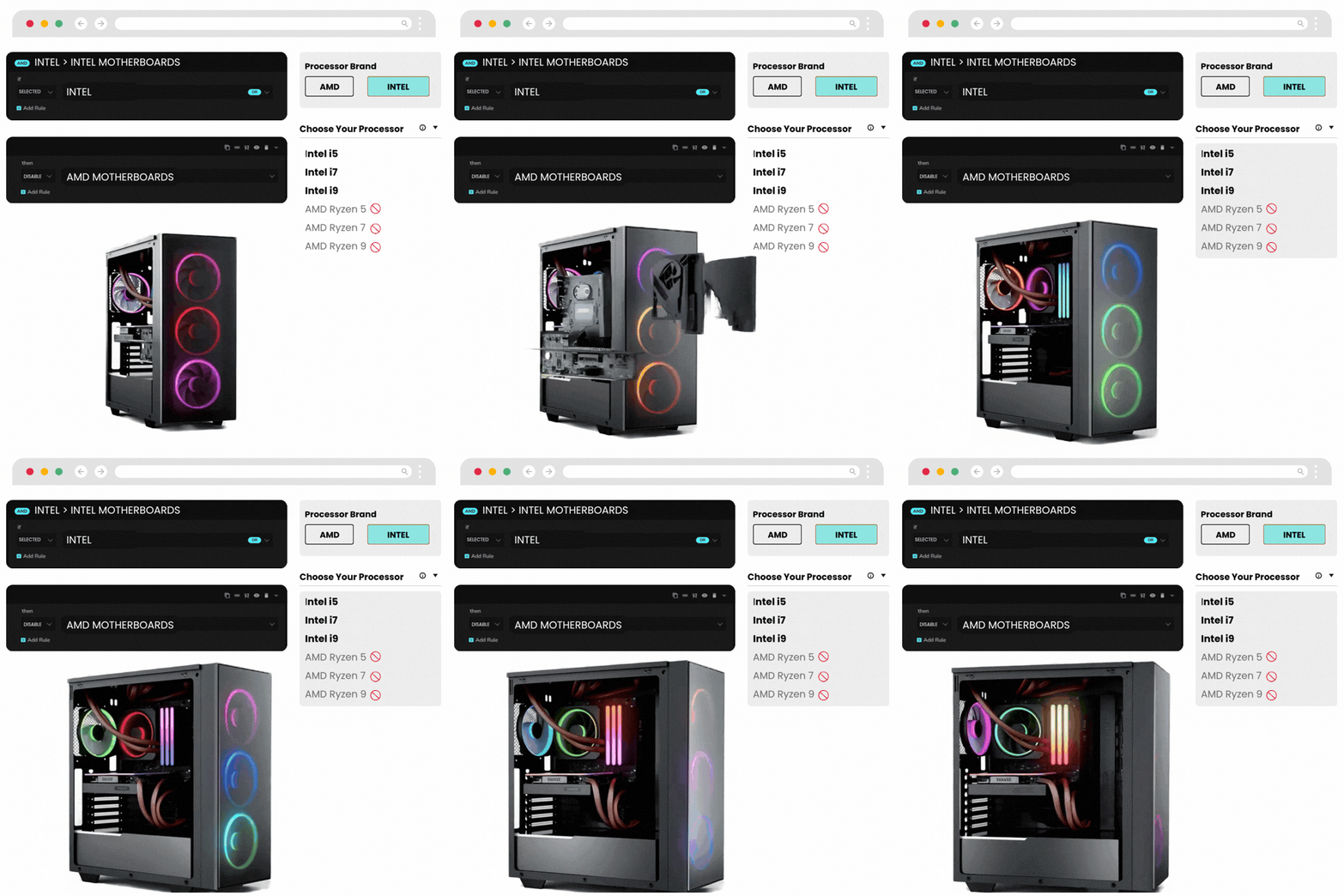
Conditional Logic Add-On
Show/hide fields based on selections to keep the UI clean.
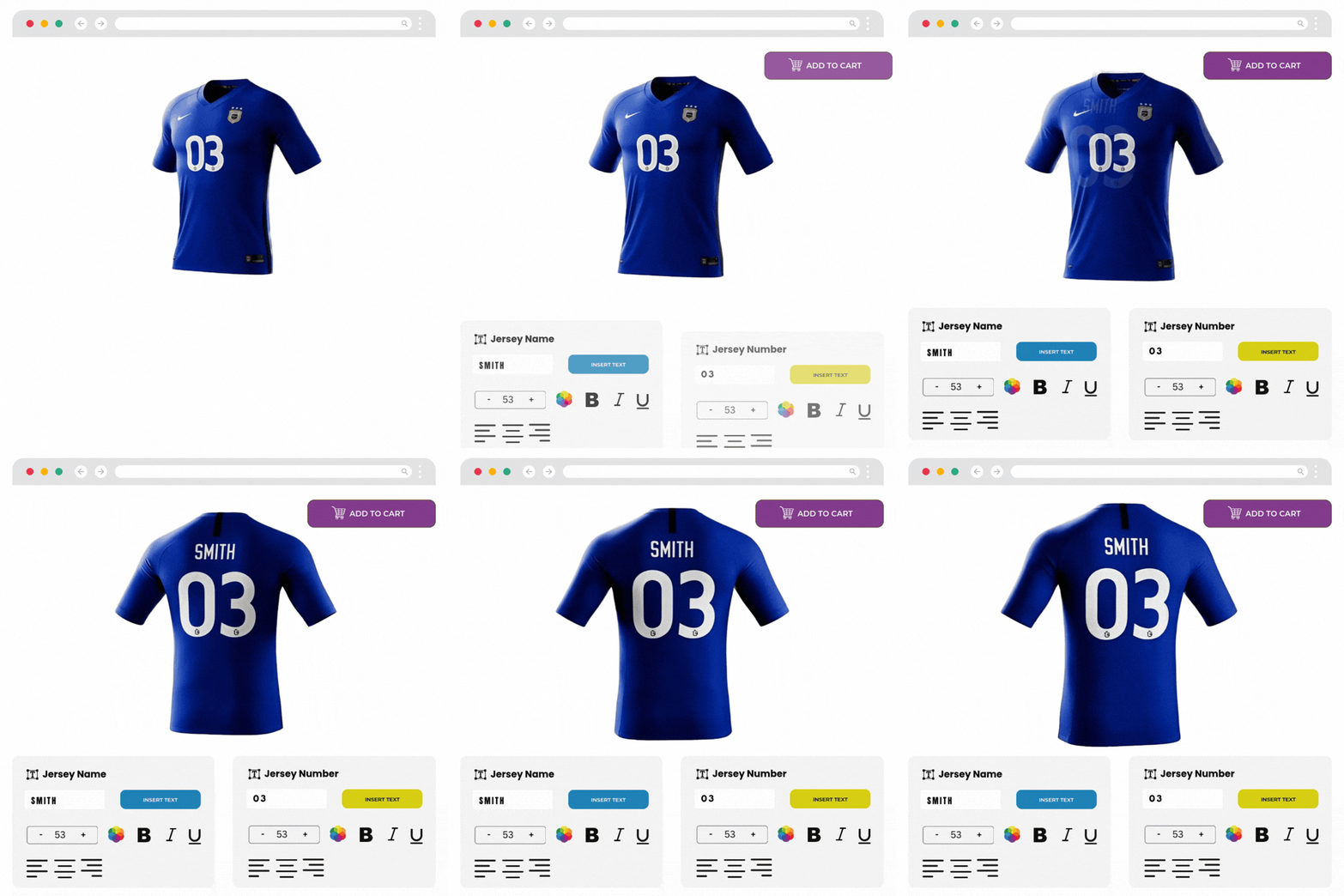
Custom Text Add-On / Custom Image Upload Add-On
Let shoppers personalize visually, and collect any extra instructions with Custom Input.
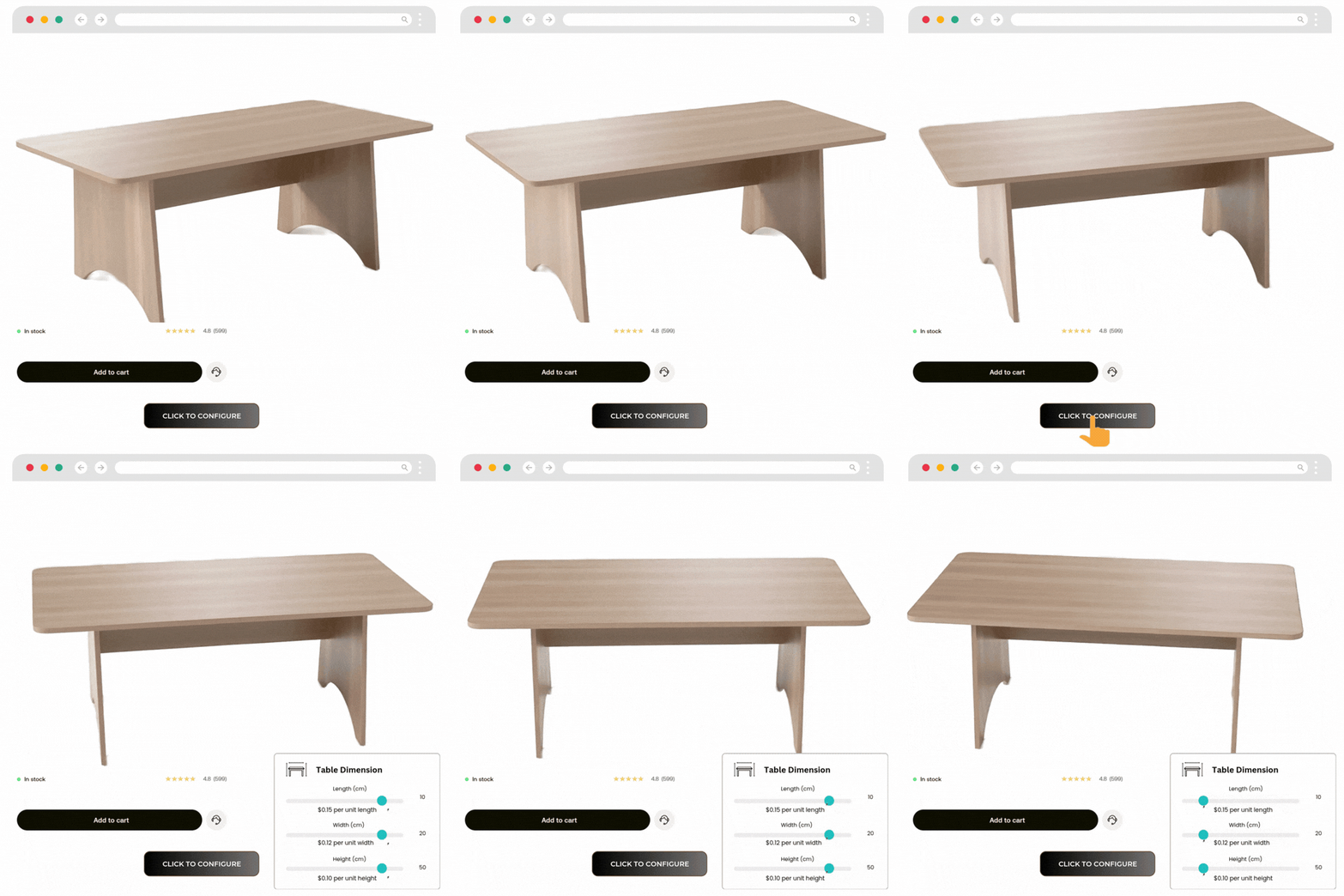
Dynamic Range Pricing Add-On
Combine “inputs + pricing rules” when personalization impacts price.
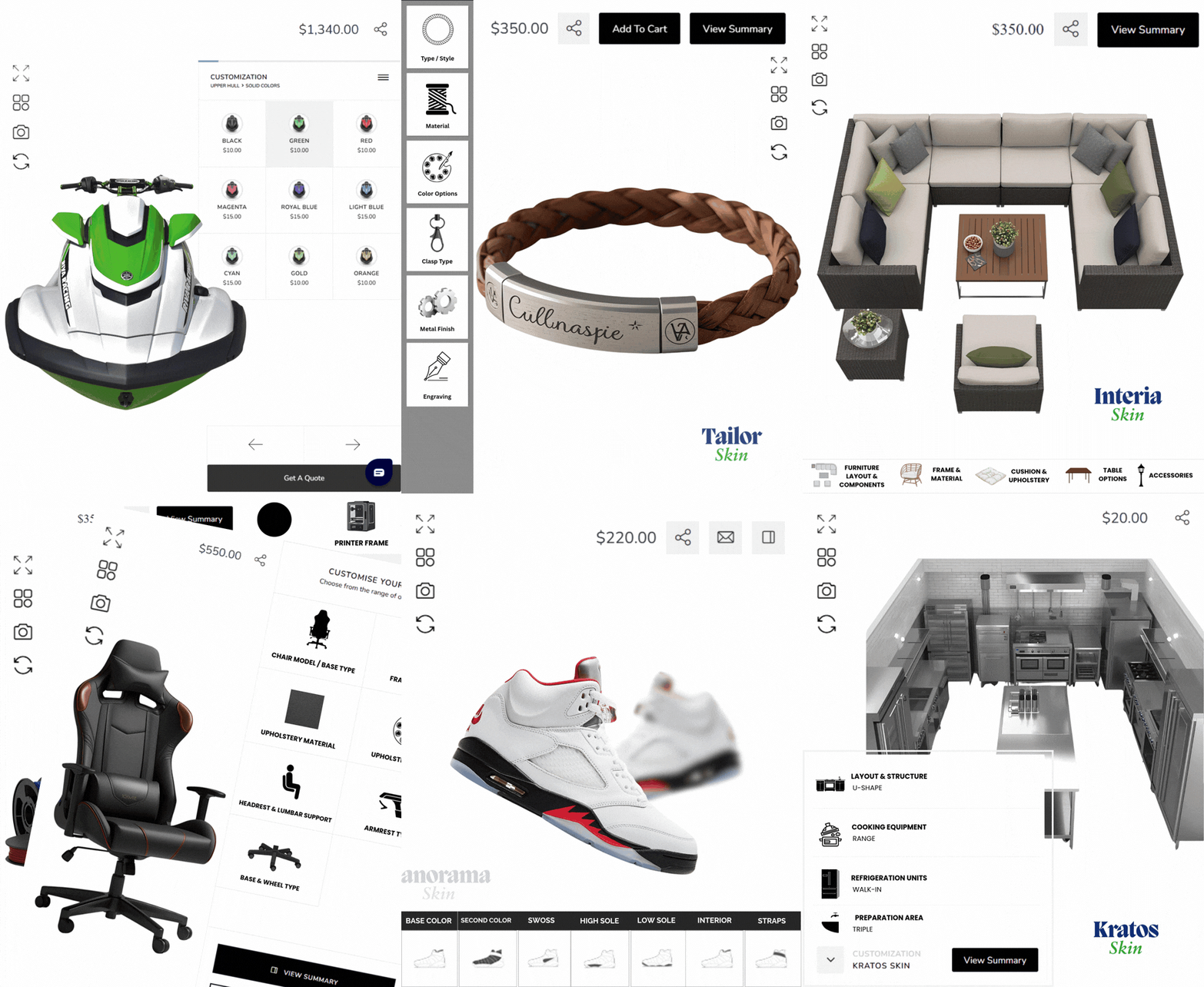
Professional Skins
Improve the step flow and make fields feel native to the product experience.
Conditional Logic Add-On
Show/hide fields based on selections to keep the UI clean.
Custom Text Add-On / Custom Image Upload Add-On
Let shoppers personalize visually, and collect any extra instructions with Custom Input.
Dynamic Range Pricing Add-On
Combine “inputs + pricing rules” when personalization impacts price.
Professional Skins
Improve the step flow and make fields feel native to the product experience.
What Our Customers Are Saying

zarbikes.com
“Before using WPConfigurator, I struggled to display custom products on my website, Zarbikes.com. WP Configurator Pro tool changed everything. Now, I can showcase my products exactly how I want, and I’m excited to explore more features to enhance other areas of my site.”
Read More

sepra-solutions.com
“Our website’s user experience has improved dramatically thanks to WPConfigurator. The site is now easier to navigate, and this has supported our business growth. We’re very satisfied with how things have turned out.”
Read More
artchustudio.com
“Our website has improved significantly since we started using WPConfigurator. The shopping experience is now smoother, and our customers love how easy it is to customize products. It’s been a game-changer for us.”
Read More
cancio.es
“I needed a configurator for a client, and WP Configurator Pro was the perfect fit. It was straightforward to set up, and the client-side interface is simple and intuitive. The end-user experience is seamless, which made my client very happy.”
Read More
vo2sportswear
“Adding a kit designer to our website was a priority, but other options were too expensive. WPConfigurator provided a cost-effective solution. It’s been fantastic for generating leads—customers can create custom designs effortlessly. Using our own garment patterns ensures accurate previews, and the ability to upload text and images for logos and squad numbers is a huge bonus.”
Read More
himandi.rs
“WPConfigurator has made it much easier for my customers to understand my products. The clear and simple descriptions have been a big help, and it’s had a positive impact on my business.”
Read More
dansk-rideudstyr.dk
“With WPConfigurator, we’ve been able to showcase our products more effectively. The website is now more user-friendly, and the improved experience has directly contributed to an increase in sales. We couldn’t be happier with the results.”
Read More
momiheadmade.com
“We use WPConfigurator to customize bags for our customers, and it’s been a fantastic product configurator tool. It’s easy to use and fits our needs perfectly. It’s made a big difference for our business.”
Read More
farmyth.com
“We are able to offer better shopping experience to our client.”
Read More
olijo.com
“Selling personalized products became much easier with WPConfigurator. Our website is now more functional and user-friendly, and customers really appreciate the customization options. It’s been a great addition to our business.”
Read More
Platex.com
“Being able to offer to our customers easy customization of a product. With features to see the product actual look and how much it will cost them. This open new business niche and increased sales.”
Read More
easytags
“Boosted revenue and increased customer engagement.”

dantebrtoni.com
“Enabled us to show to our customers what they should have in a clear and innovative way.”
Read More
“Great support, fast responses, and very accommodating! I tried the configurator, and it’s an absolutely fantastic tool. Unfortunately, it didn’t work for my specific use case, but I received a refund immediately. The support team was quick, friendly, reliable, and very professional. Highly recommended!”
Read More

“Great support and response time I bought the plugin december 2024 and had alot of problems with it. It may be my setup or that i bought in in a middle of an update period for woocommerce, wordpress etc. They went far to help me out and was outstanding when it came to support and detailed responses. Unfortunately we couldn t find a solution that made it to work since when one thing was fixed the next problem showed up. They refunded me after they (and i) tried to solve the problems. I m a bit sad since the plugin looks really awesome and does everything i need. 5 stars for the hard effort to help me out!”
Read More
“Exceptional Tool for Customizing Products – WP Configurator Review I recently came across WP Configurator while searching for a reliable product configurator online, and I must say, it s a game changer! The tool is incredibly user-friendly and allowed me to customize products exactly how I wanted with just a few clicks. The interface is intuitive, making it easy even for someone with minimal technical skills like myself to navigate and use effectively.”
Read More
“WPConfigurator is an incredible product configuration plugin and platform. You can create a super professional-looking configuration. The support team is responsive and always ready to help you find a solution. I highly recommend WPConfigurator and their friendly and knowledgeable support team.”
Read More
“Had an issue with the woocommerce order of a configurator product and even though they didnt have that feauture yet they created a little script i could add to my site which helped me out immensly. Thank you so much to the wonderful team of configurator pro!”
Read More
“This plugin means lot for my project. I had an issue and they found a way to solve it… eventhough we had a long time working on it. But the idea was always to find the best way to give a solution in order to the project’s going on and go live for customers’ benefit. I’m gratefull of this effort.This plugin means lot for my project. I had an issue and they found a way to solve it… eventhough we had a long time working on it. But the idea was always to find the best way to give a solution in order to the project’s going on and go live for customers’ benefit. I’m gratefull of this effort.”
Read More
“I’ve been using WPConfigurator, and honestly, it’s been great. It’s really easy to set up, and you can customize just about anything. Whenever I’ve needed help, the support team has been quick to respond. If you need a solid tool for product configurators, this one’s a winner.”
Read More
“I’m using wpconfigurator software for 4 years and I’m really happy, with the support and with the plugin, thanks wpconfigurator team!”
Read More
“Im really satisfied with the quality and price of this awesome plugin. Is the most intuitive product configurator in the market. Thank You WPConfigurator Team!”
Read More
“Best WordPress configurator Plugin After trying several configurator plugins, I can confidently say that WPConfigurator is the best of the bunch. Its seamless integration with WooCommerce and user-friendly interface make customization a breeze. The support team is exceptional and even went above and beyond (But they a day or two fix to find fix the issue, with my experience usually issues causes other plugins). WPConfigurator is the ultimate choice if you need a configurator for wordpress.”
Read More
zarbikes.com
“Before using WPConfigurator, I struggled to display custom products on my website, Zarbikes.com. WP Configurator Pro tool changed everything. Now, I can showcase my products exactly how I want, and I’m excited to explore more features to enhance other areas of my site.”
Read More
sepra-solutions.com
“Our website’s user experience has improved dramatically thanks to WPConfigurator. The site is now easier to navigate, and this has supported our business growth. We’re very satisfied with how things have turned out.”
Read More
artchustudio.com
“Our website has improved significantly since we started using WPConfigurator. The shopping experience is now smoother, and our customers love how easy it is to customize products. It’s been a game-changer for us.”
Read More
cancio.es
“I needed a configurator for a client, and WP Configurator Pro was the perfect fit. It was straightforward to set up, and the client-side interface is simple and intuitive. The end-user experience is seamless, which made my client very happy.”
Read More
vo2sportswear
“Adding a kit designer to our website was a priority, but other options were too expensive. WPConfigurator provided a cost-effective solution. It’s been fantastic for generating leads—customers can create custom designs effortlessly. Using our own garment patterns ensures accurate previews, and the ability to upload text and images for logos and squad numbers is a huge bonus.”
Read More
himandi.rs
“WPConfigurator has made it much easier for my customers to understand my products. The clear and simple descriptions have been a big help, and it’s had a positive impact on my business.”
Read More
dansk-rideudstyr.dk
“With WPConfigurator, we’ve been able to showcase our products more effectively. The website is now more user-friendly, and the improved experience has directly contributed to an increase in sales. We couldn’t be happier with the results.”
Read More
momiheadmade.com
“We use WPConfigurator to customize bags for our customers, and it’s been a fantastic product configurator tool. It’s easy to use and fits our needs perfectly. It’s made a big difference for our business.”
Read More
farmyth.com
“We are able to offer better shopping experience to our client.”
Read More
olijo.com
“Selling personalized products became much easier with WPConfigurator. Our website is now more functional and user-friendly, and customers really appreciate the customization options. It’s been a great addition to our business.”
Read More
Platex.com
“Being able to offer to our customers easy customization of a product. With features to see the product actual look and how much it will cost them. This open new business niche and increased sales.”
Read More
easytags
“Boosted revenue and increased customer engagement.”
dantebrtoni.com
“Enabled us to show to our customers what they should have in a clear and innovative way.”
Read More
“Great support, fast responses, and very accommodating! I tried the configurator, and it’s an absolutely fantastic tool. Unfortunately, it didn’t work for my specific use case, but I received a refund immediately. The support team was quick, friendly, reliable, and very professional. Highly recommended!”
Read More
“Great support and response time I bought the plugin december 2024 and had alot of problems with it. It may be my setup or that i bought in in a middle of an update period for woocommerce, wordpress etc. They went far to help me out and was outstanding when it came to support and detailed responses. Unfortunately we couldn t find a solution that made it to work since when one thing was fixed the next problem showed up. They refunded me after they (and i) tried to solve the problems. I m a bit sad since the plugin looks really awesome and does everything i need. 5 stars for the hard effort to help me out!”
Read More
“Exceptional Tool for Customizing Products – WP Configurator Review I recently came across WP Configurator while searching for a reliable product configurator online, and I must say, it s a game changer! The tool is incredibly user-friendly and allowed me to customize products exactly how I wanted with just a few clicks. The interface is intuitive, making it easy even for someone with minimal technical skills like myself to navigate and use effectively.”
Read More
“WPConfigurator is an incredible product configuration plugin and platform. You can create a super professional-looking configuration. The support team is responsive and always ready to help you find a solution. I highly recommend WPConfigurator and their friendly and knowledgeable support team.”
Read More
“Had an issue with the woocommerce order of a configurator product and even though they didnt have that feauture yet they created a little script i could add to my site which helped me out immensly. Thank you so much to the wonderful team of configurator pro!”
Read More
“This plugin means lot for my project. I had an issue and they found a way to solve it… eventhough we had a long time working on it. But the idea was always to find the best way to give a solution in order to the project’s going on and go live for customers’ benefit. I’m gratefull of this effort.This plugin means lot for my project. I had an issue and they found a way to solve it… eventhough we had a long time working on it. But the idea was always to find the best way to give a solution in order to the project’s going on and go live for customers’ benefit. I’m gratefull of this effort.”
Read More
“I’ve been using WPConfigurator, and honestly, it’s been great. It’s really easy to set up, and you can customize just about anything. Whenever I’ve needed help, the support team has been quick to respond. If you need a solid tool for product configurators, this one’s a winner.”
Read More
“I’m using wpconfigurator software for 4 years and I’m really happy, with the support and with the plugin, thanks wpconfigurator team!”
Read More
“Im really satisfied with the quality and price of this awesome plugin. Is the most intuitive product configurator in the market. Thank You WPConfigurator Team!”
Read More
“Best WordPress configurator Plugin After trying several configurator plugins, I can confidently say that WPConfigurator is the best of the bunch. Its seamless integration with WooCommerce and user-friendly interface make customization a breeze. The support team is exceptional and even went above and beyond (But they a day or two fix to find fix the issue, with my experience usually issues causes other plugins). WPConfigurator is the ultimate choice if you need a configurator for wordpress.”
Read More

100% No-Risk Money Back Guarantee
You are fully protected by our 100% Money Back Guarantee. If you aren’t completely satisfied within 15 days of purchase, you’re more than welcome to a full refund.
Custom Input Field FAQs
What is Custom Input in WP Configurator?
It’s an add-on that lets you collect extra customer information inside the configurator - like names, initials, special requests, and other order notes.
Does it work with existing WP Configurator products?
Yes - your configurators keep working as-is, and you can add Custom Input only to the products that need it.
What types of fields can I add?
You can create fields like Text, Textarea, Select, Radio, and Checkbox (and organize them into field groups).
Can I charge extra for personalization fields (like engraving)?
Yes - each field can have a price that’s added when the field is filled or selected.
Where do I set it up in WordPress?
Create fields under Configurator → Custom Fields, then assign the field group inside the configurator editor.
Can I place fields in a specific step of my configurator?
Yes. Assign the field group to the layer/step where you want it to appear in the configuration flow.
Does it support the conditional display of fields?
If you need fields to appear only after certain choices, pair this with the Conditional Logic add-on for a cleaner experience.
Do I need an external SaaS or subscription?
No - Custom Input runs inside your WordPress/WooCommerce setup (no external SaaS required).
Will this slow down my store?
The add-on is designed to run within your site stack (no external calls implied). For best performance, keep fields purposeful and avoid overly long multi-step forms.
What versions of WordPress/WooCommerce does it support?
The product page lists current compatibility details (WordPress and WooCommerce versions) and shows the latest update date.
Is this the same as WooCommerce product add-ons?
No. Custom Input works inside the WP Configurator flow, not just on the product page, making it ideal for complex, visual configurations.